A screen or battery replacement doesn’t touch your device’s storage, but some faults — a failing drive or board — can put your data at risk before the device even reaches us. A backup is the only guaranteed safety net.
For your phone
- Turn on automatic backup of photos and contacts to your phone’s cloud account, and check the date of the last backup.
- Export messaging app chats from their own settings — they aren’t always included in the phone backup.
- If your cloud storage is full, copy photos to your laptop with a cable.
For your laptop
- Copy your Documents, Pictures and Desktop folders to an external drive.
- Don’t forget files from special programs, such as accounting databases or design projects.
- Note important passwords somewhere safe, or make sure they’re saved in your account.
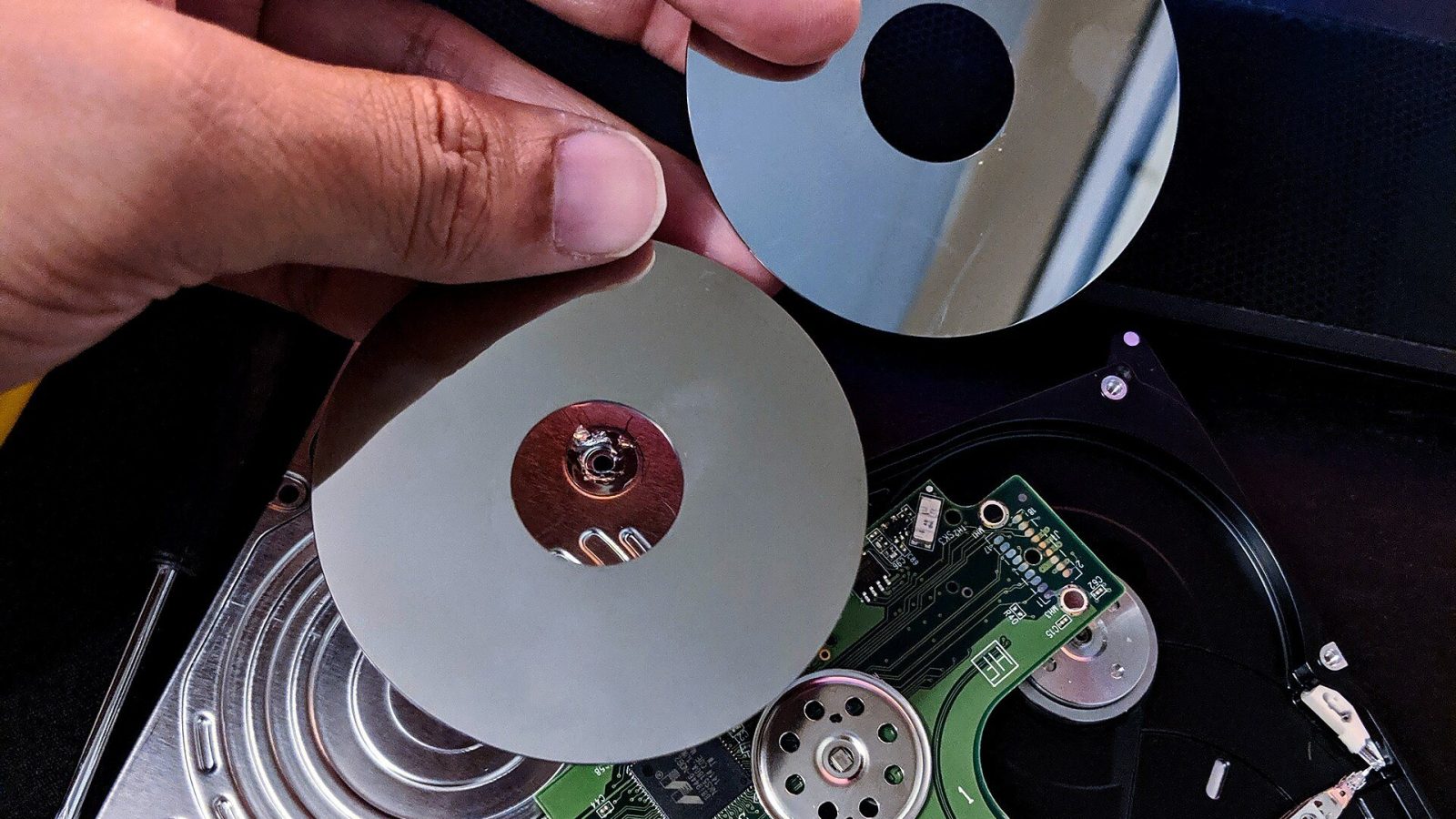
And if the device won’t start?
If it doesn’t start at all, don’t keep trying to power it on. Tell us at drop-off that the data matters, and our data specialist will copy the storage before any repair.